

Instructional Videos
21 Lessons
1

SN Vision Introduction
2

How to Set Up TradingView Account
3
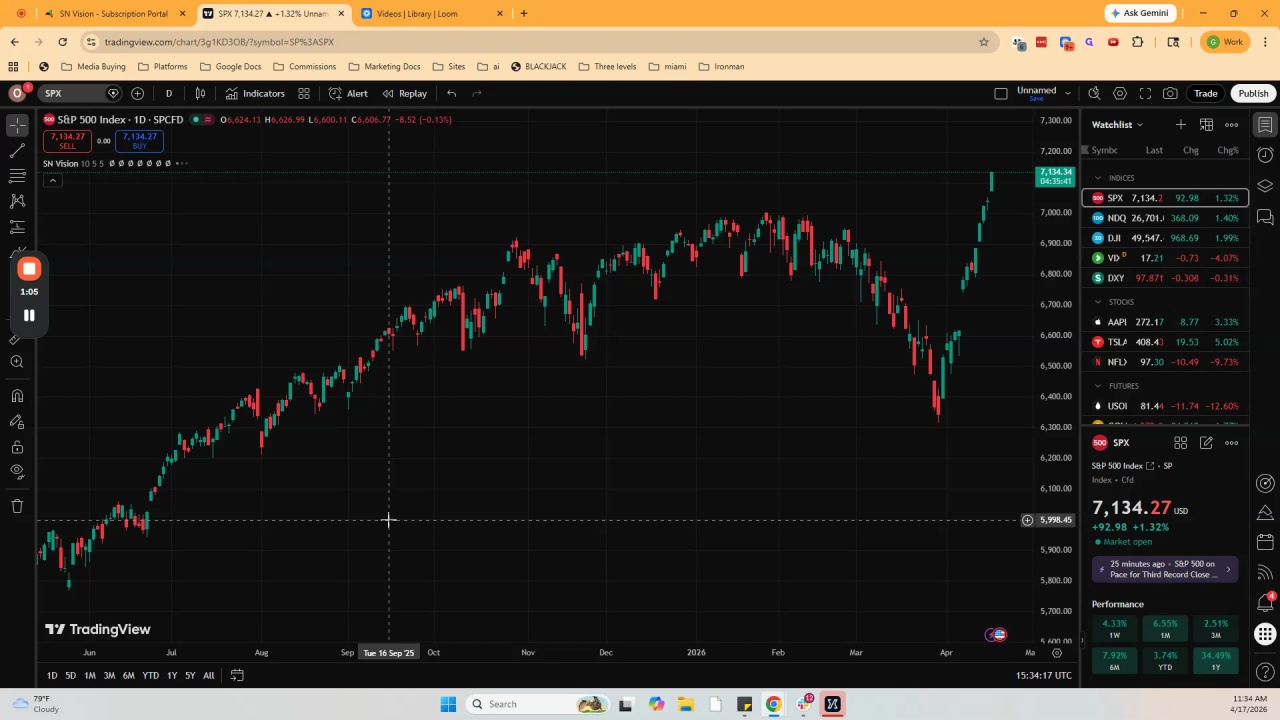
How to Add SN Vision to TradingView Account

How to Add SN Vision to NinjaTrader Account
5

How to Add CME Data to TradingView
6
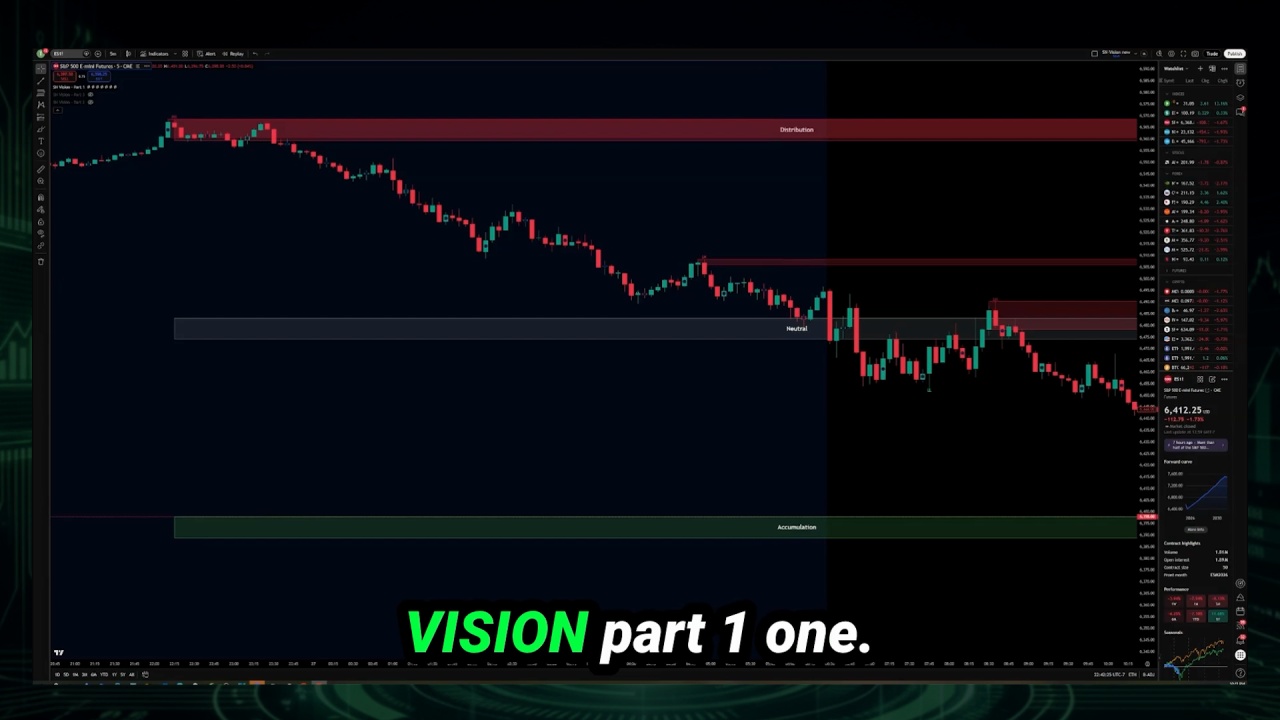
Price Action & Money Management
7
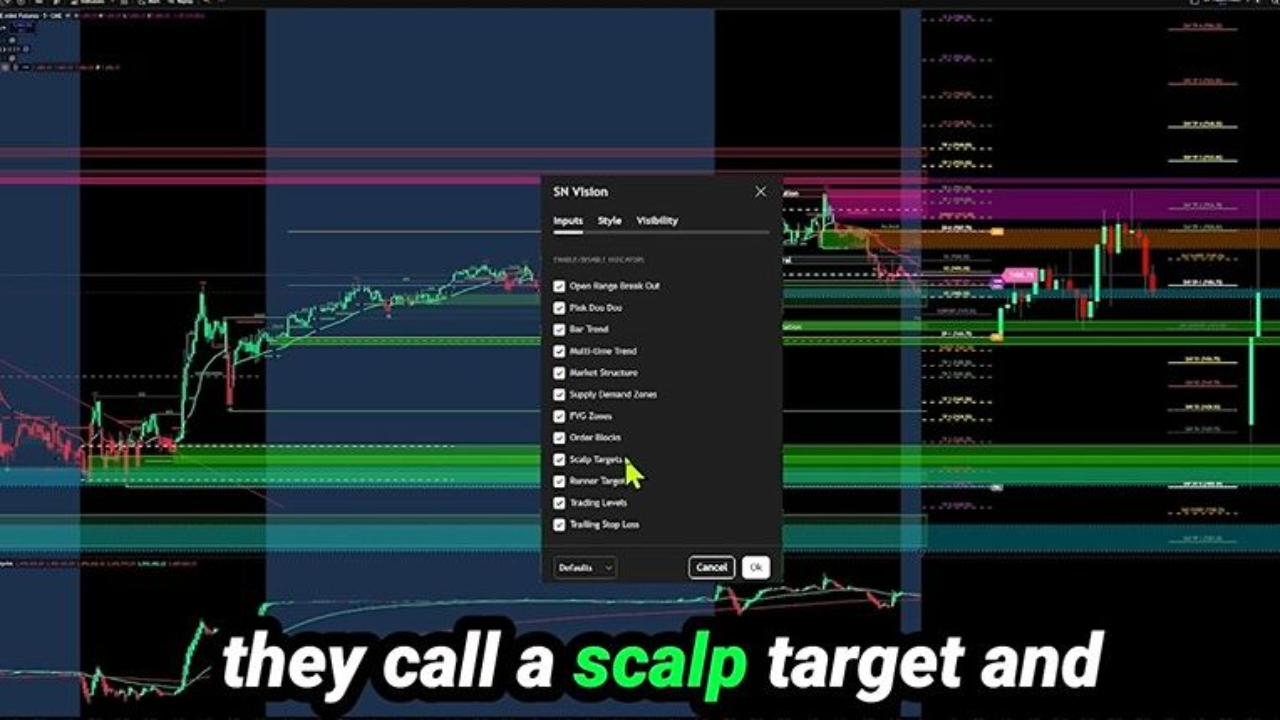
Scalp Targets & Runner Targets
8
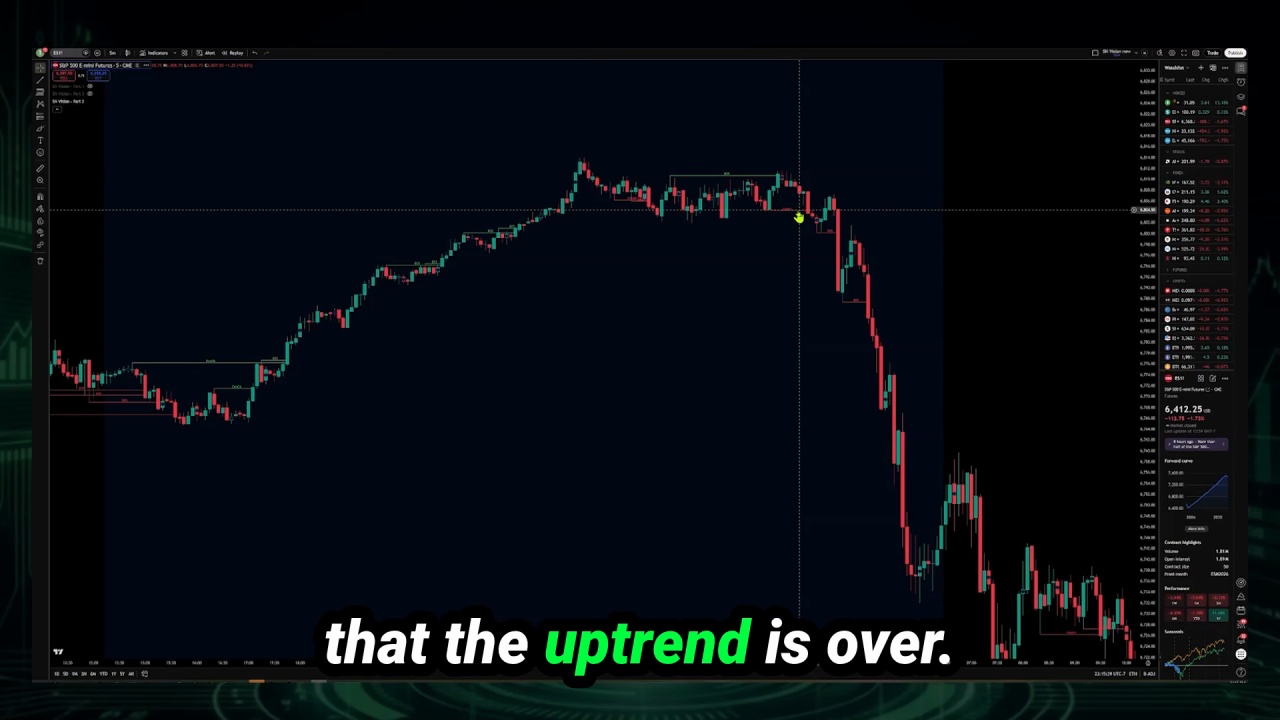
Market Structure
9
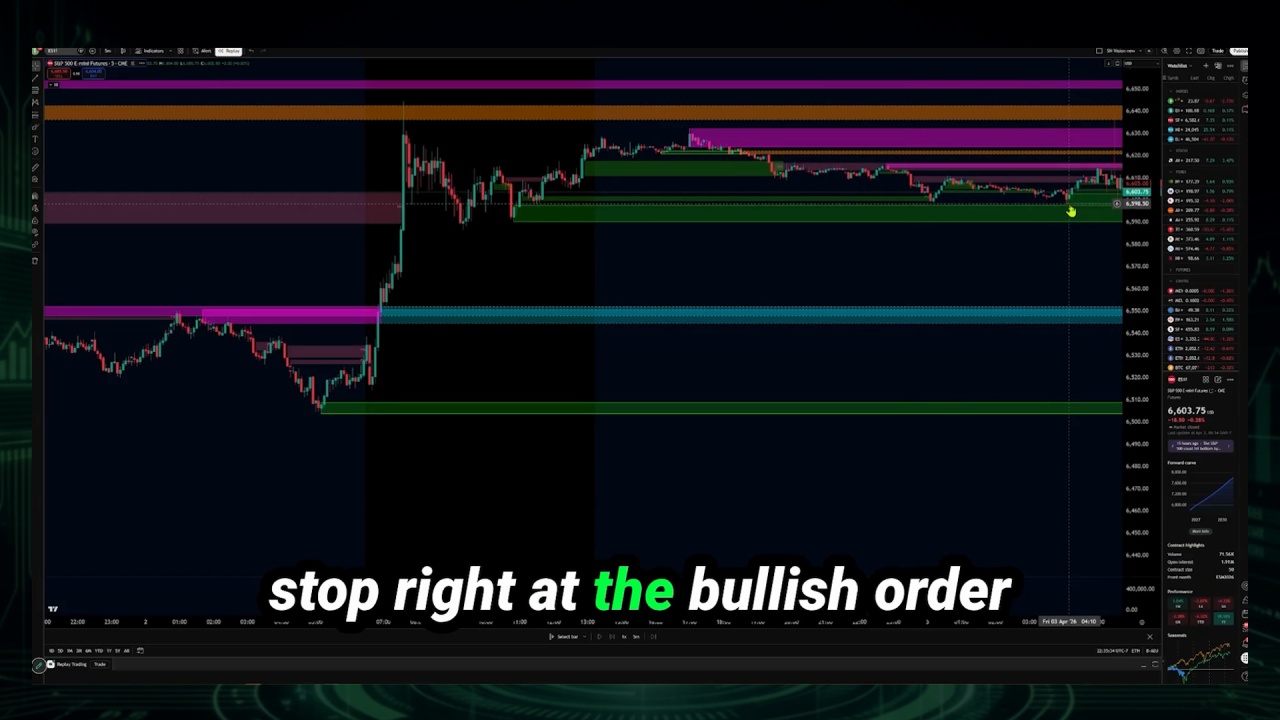
Smart Money Concept
10
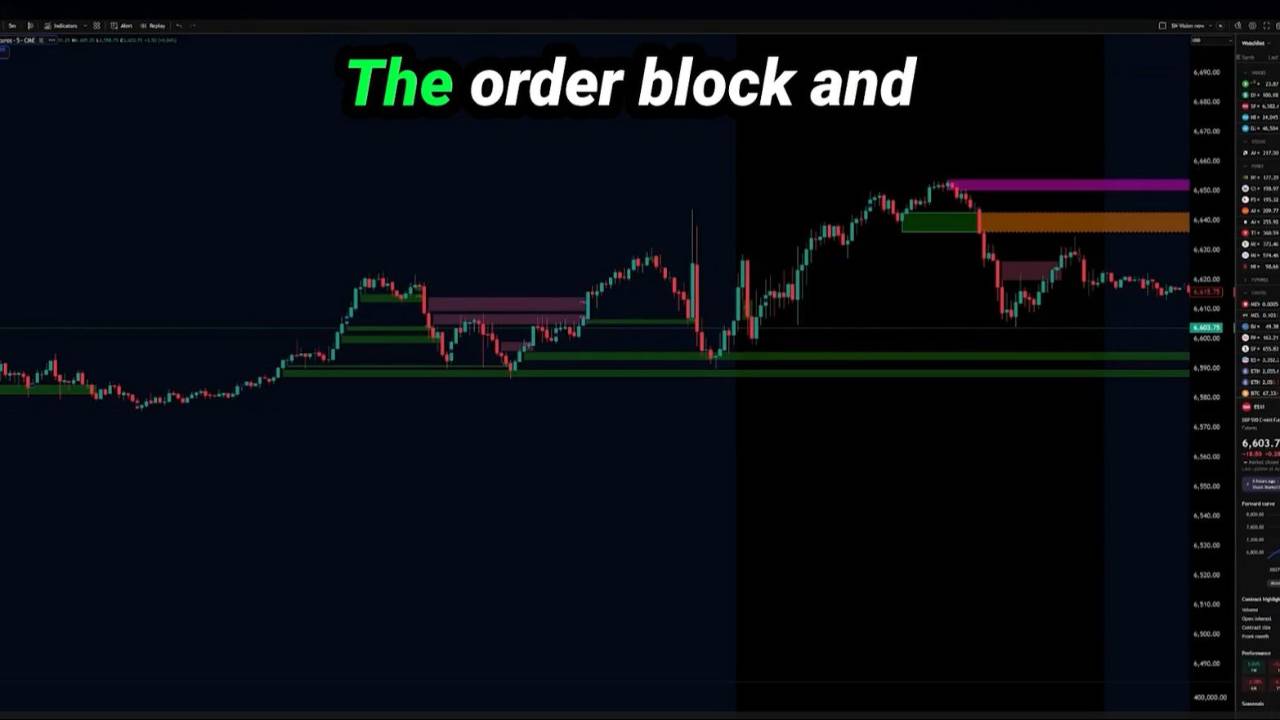
Smart Money Concept (Demonstration)
11
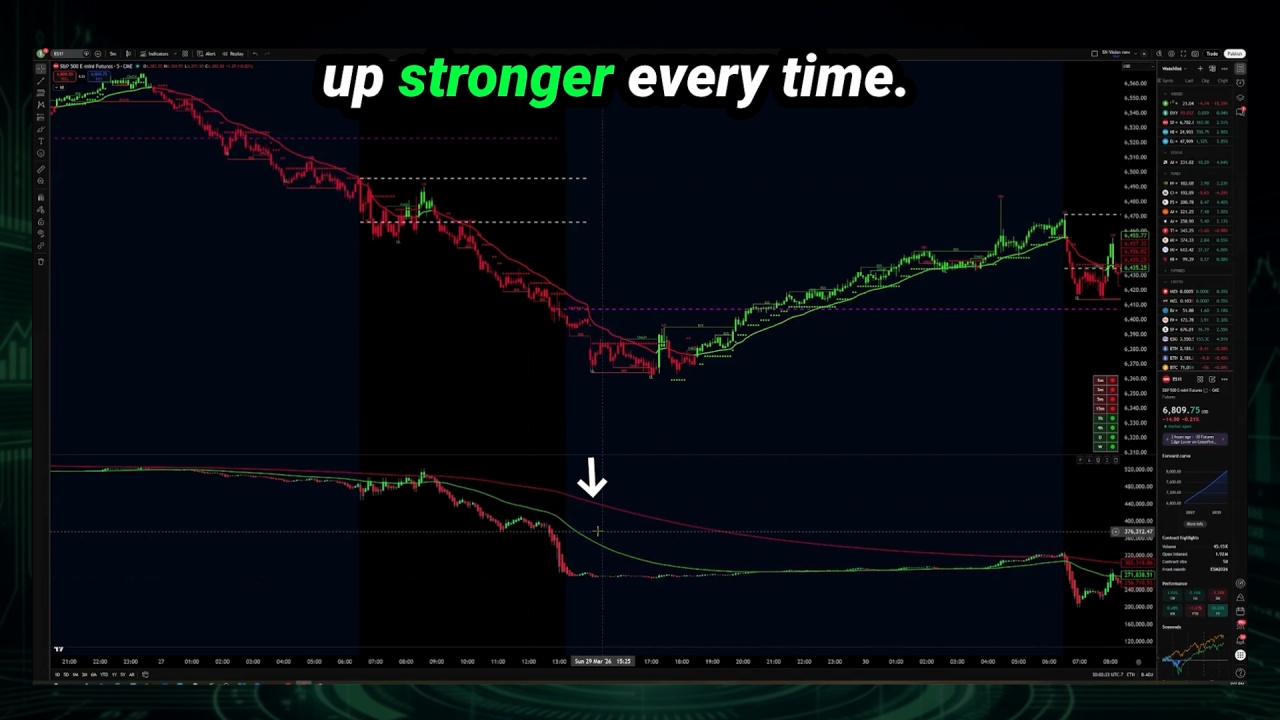
Volume Footprint
12
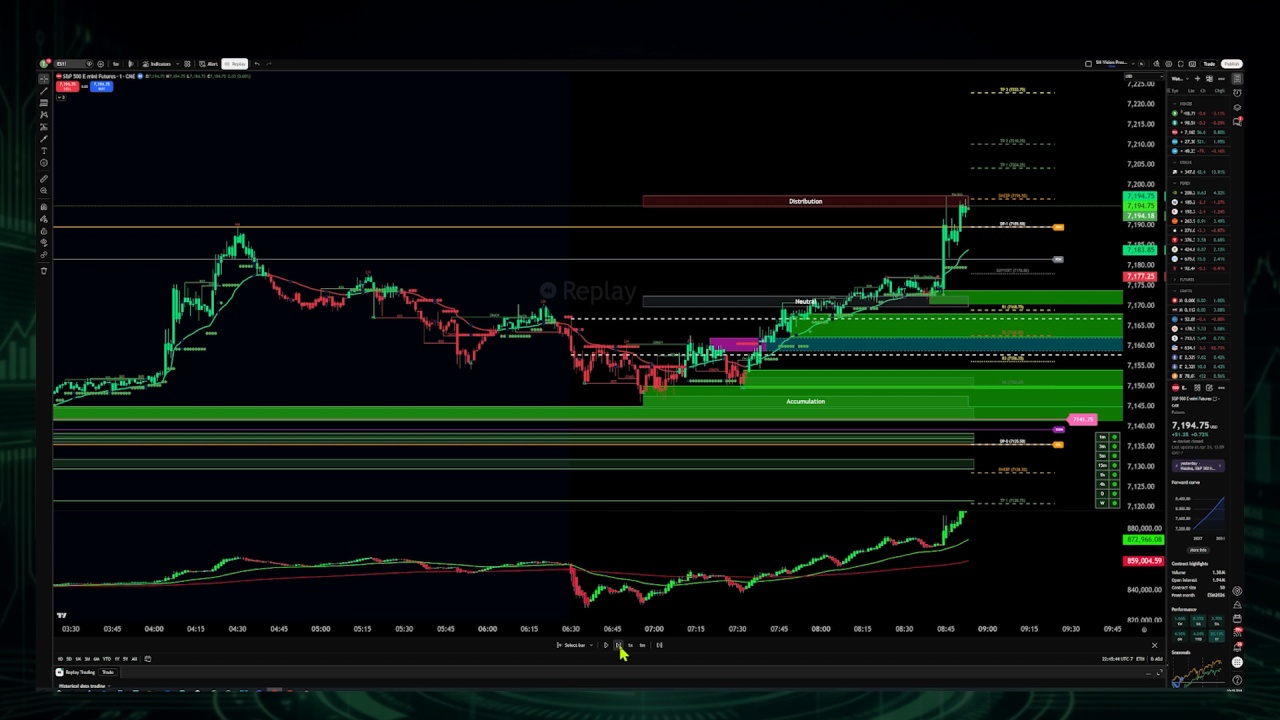
Golden Rule of the Markets
13

Multiple Time Frame Analysis
14
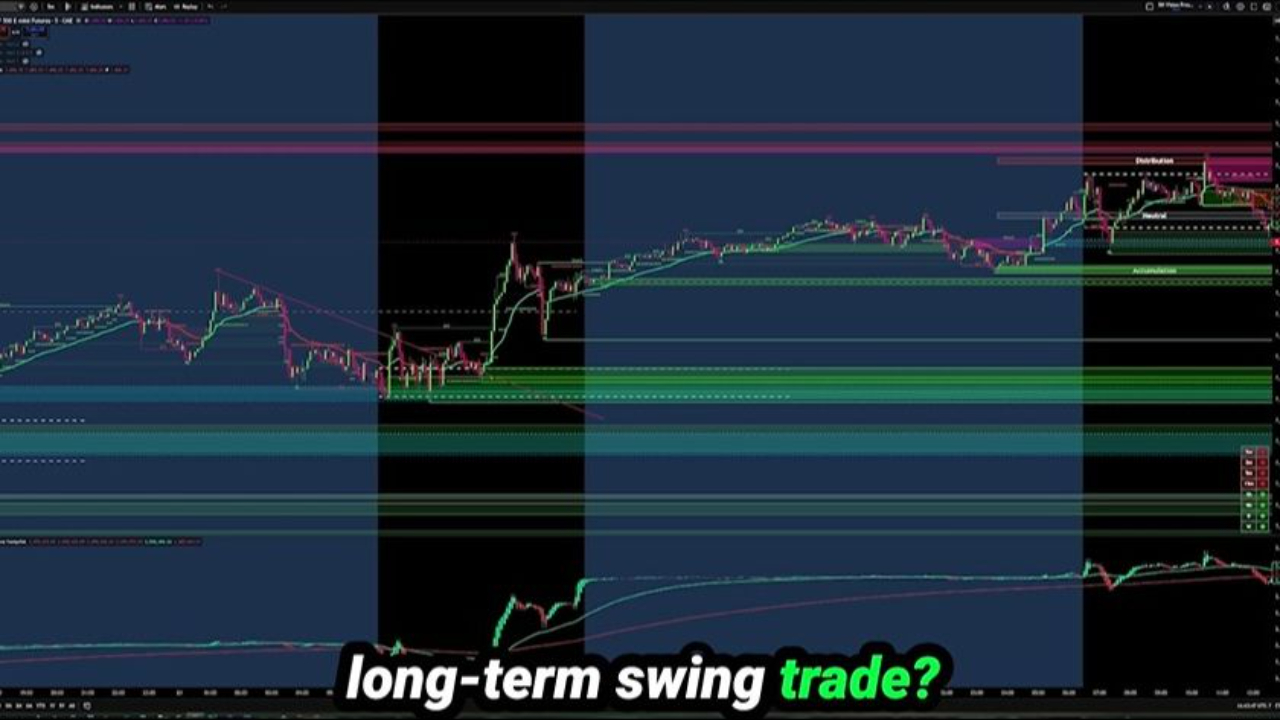
Day & Swing Trading - SN Vision
15
Ninjatrader for SN Vision
16
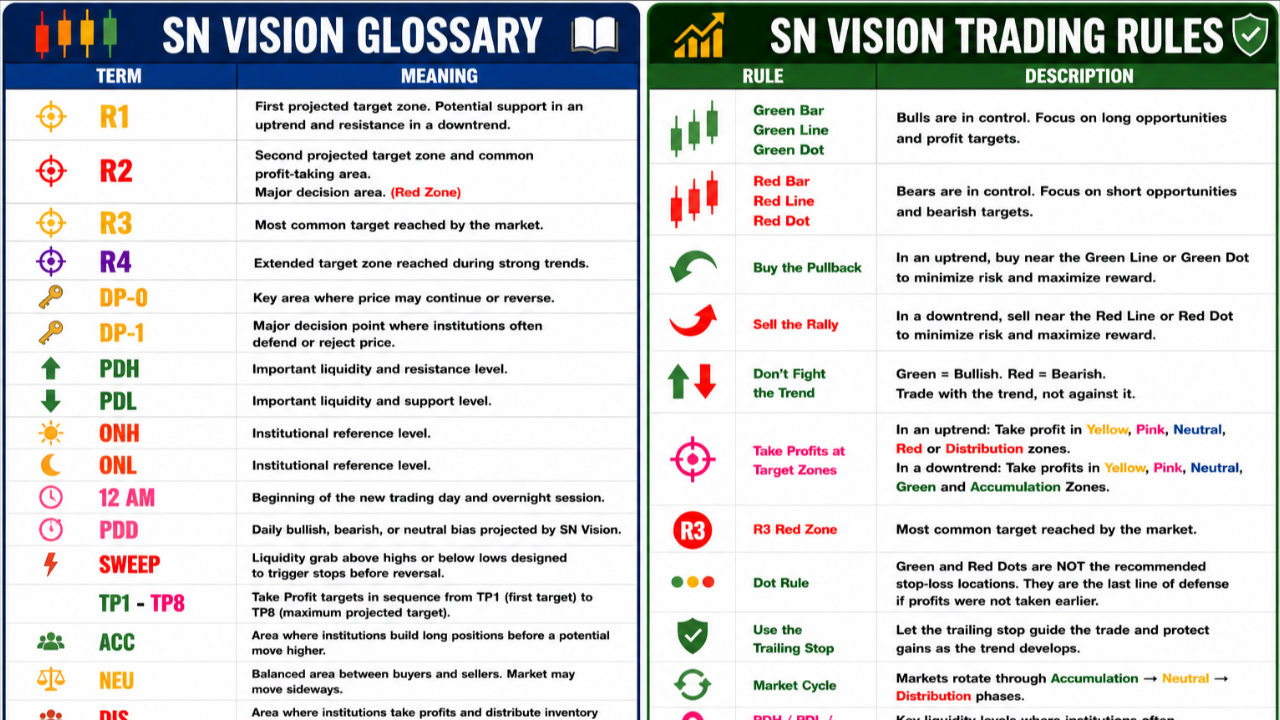
SN Vision - Glossary & Trading Rules
17
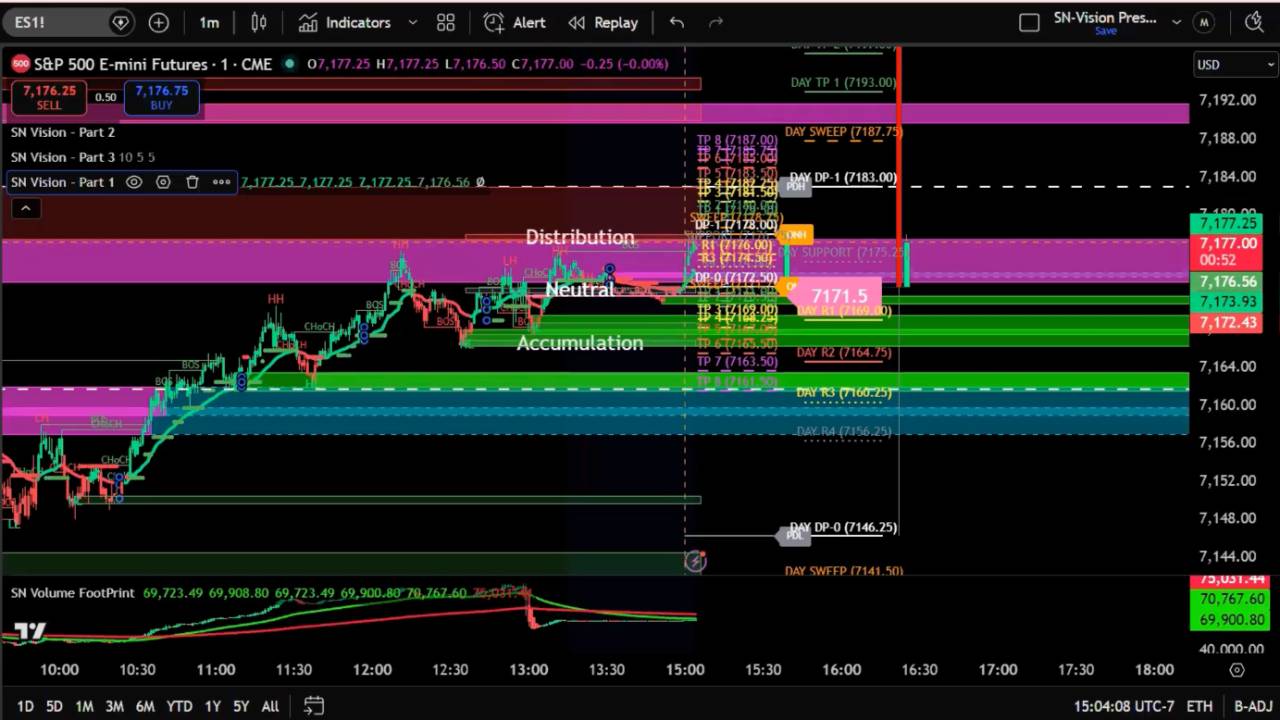
SN Vision Q&A 4.28.26
18
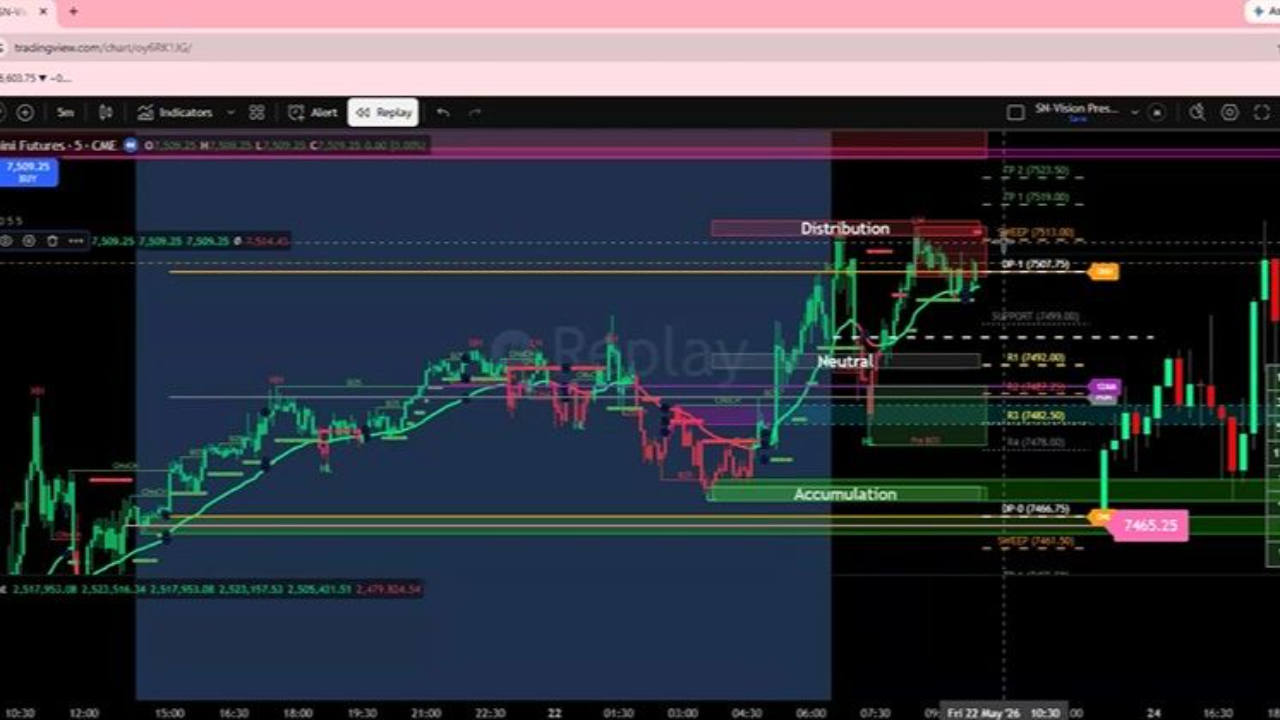
SN Vision Q&A 5.22.26
19

SN Vision Q&A 6.25.26
20
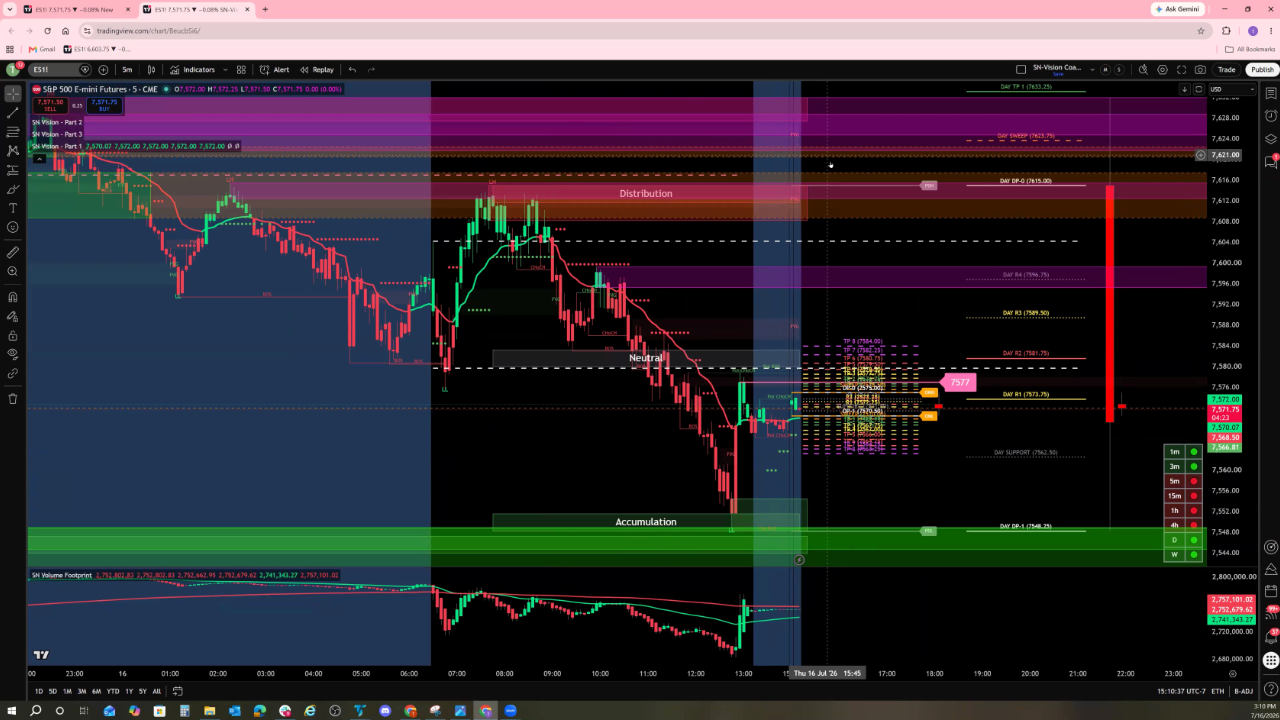
SN Vision Q&A 7.18.26
21
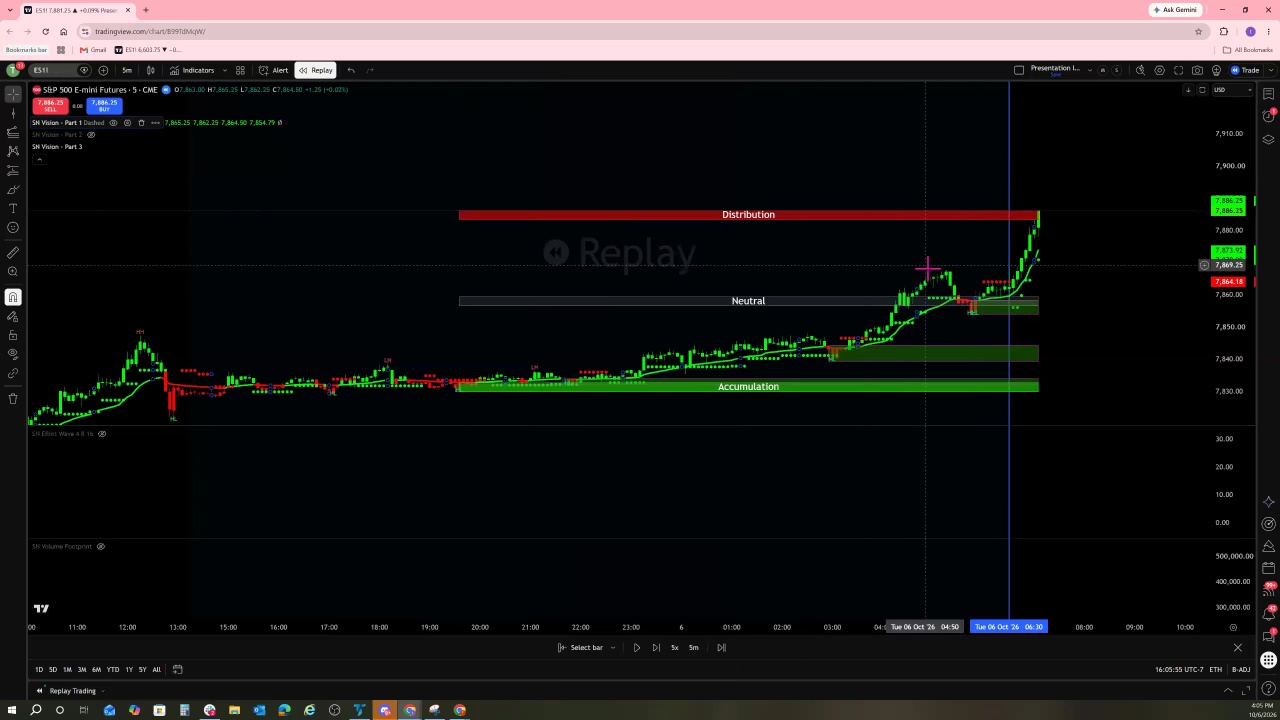
SN Vision Q&A 10.6.26
How to Add SN Vision to NinjaTrader Account
Instructional Videos
Instructions if you've already purchased SN Vision for TradingView and want to add it to NinjaTrader
Try following these steps to get everything set up. If you encounter issues downloading from Microsoft Edge, please watch this tutorial video.
1. First, you’ll want to create a NinjaTrader account:https://support.ninjatrader.com/s/article/NinjaTrader-Desktop-Installation-Guide?language=en_US
2. Once your account is created, you can download NinjaTrader to your desktop:https://support.ninjatrader.com/s/article/NinjaTrader-Desktop-Installation-Guide?language=en_US
3. Next, sign back into the student portal to access your activation key (same email you first bought SN Vision for TradingView with):https://payment.stocknavigators.com/
4. From there, you can generate your activation key and use it to access the indicator in NinjaTrader. This video will walk you through that step:https://www.youtube.com/watch?v=ZrW7iEa_iVw